Body
This article provides step-by-step instructions for completing an approval step that has been assigned to you through a TeamDynamix workflow.
Instructions
-
Open the email notification you received for the workflow step assignment.
-
Click View/Approve in the email.
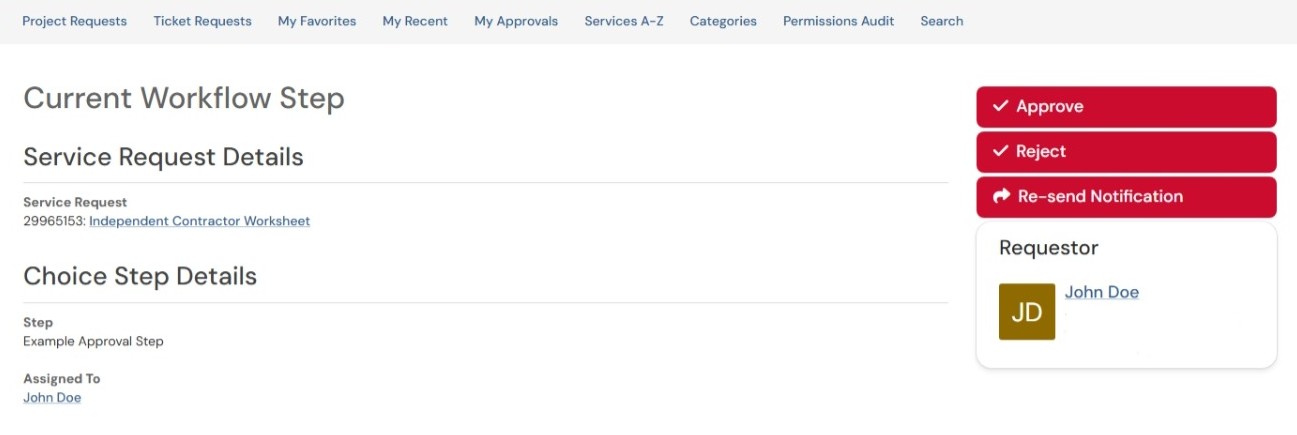
3. On the approval page, review the available approval options displayed on the right side of the screen.
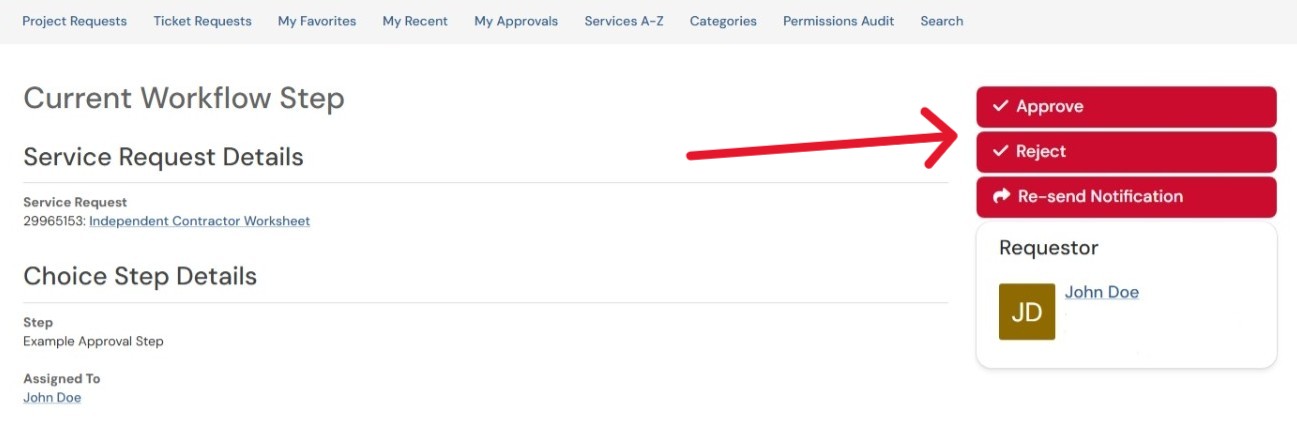
4. To review the request details, locate the request title on the left side of the page. Right-click (or Ctrl+Click) the request title and open it in a new tab.
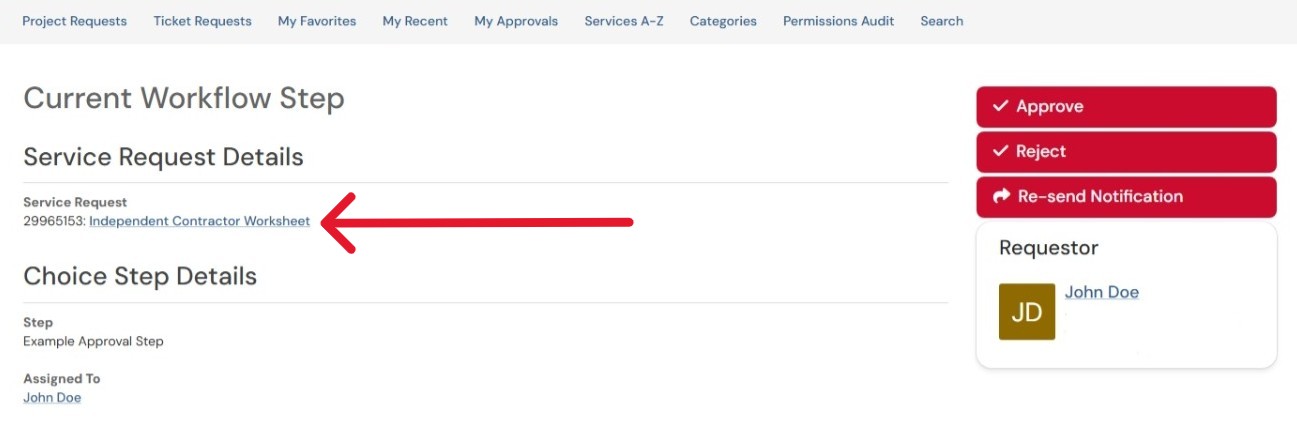
5. Review the request information and any supporting details.
6. Return to the approval page and select the appropriate approval option.
7. (Optional) Enter a comment to provide additional information regarding your decision.
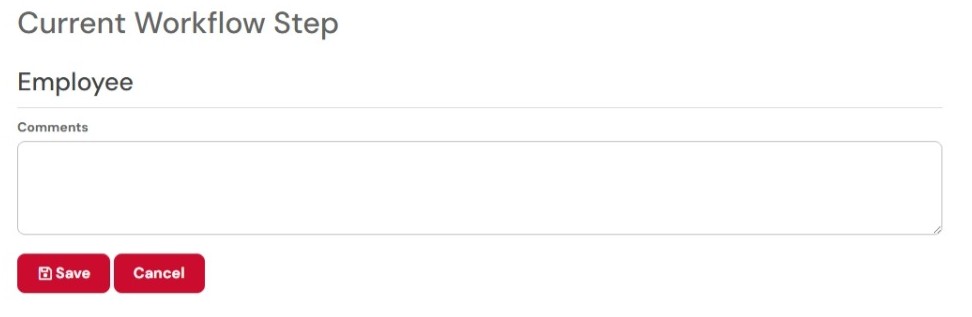
8. Click Save to submit your response.
Your workflow step is now complete, and you may close the page.
Important Notes
-
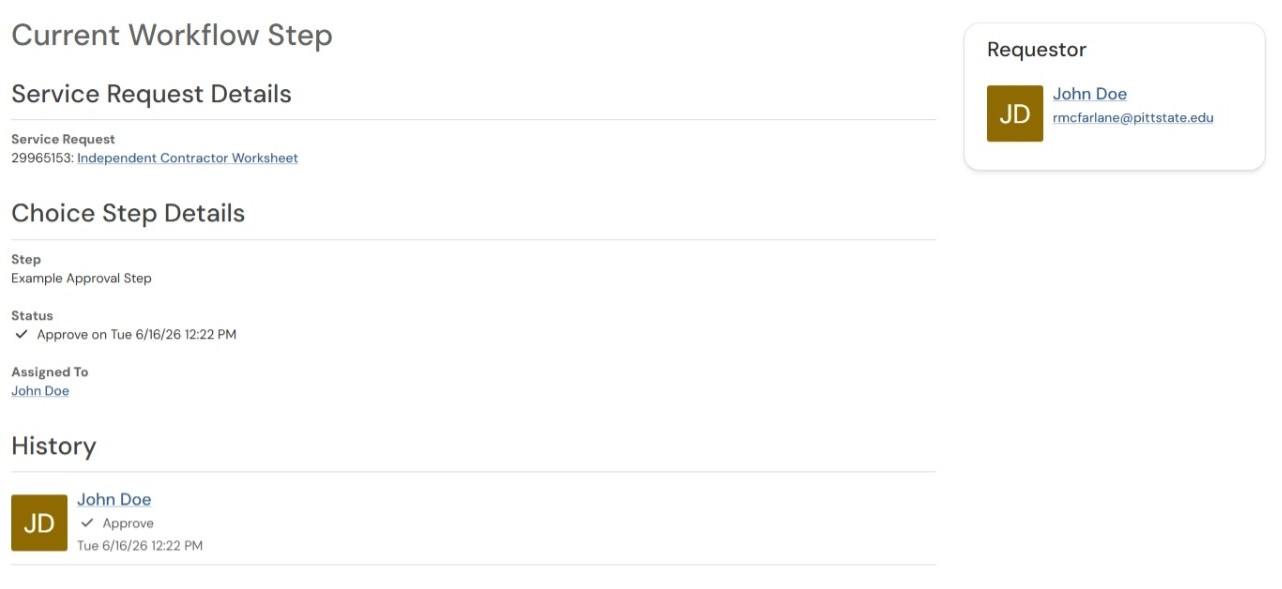
If you open the approval page and see the current workflow step but no approval options are available, the step has already been completed by another assigned approver.
-
Workflow approval steps may be assigned to multiple individuals or groups. In these cases, only one assigned approver is required to complete the step before the workflow proceeds to the next stage.